Best Free Text Case Converter – Convert Text Case Online Instantly
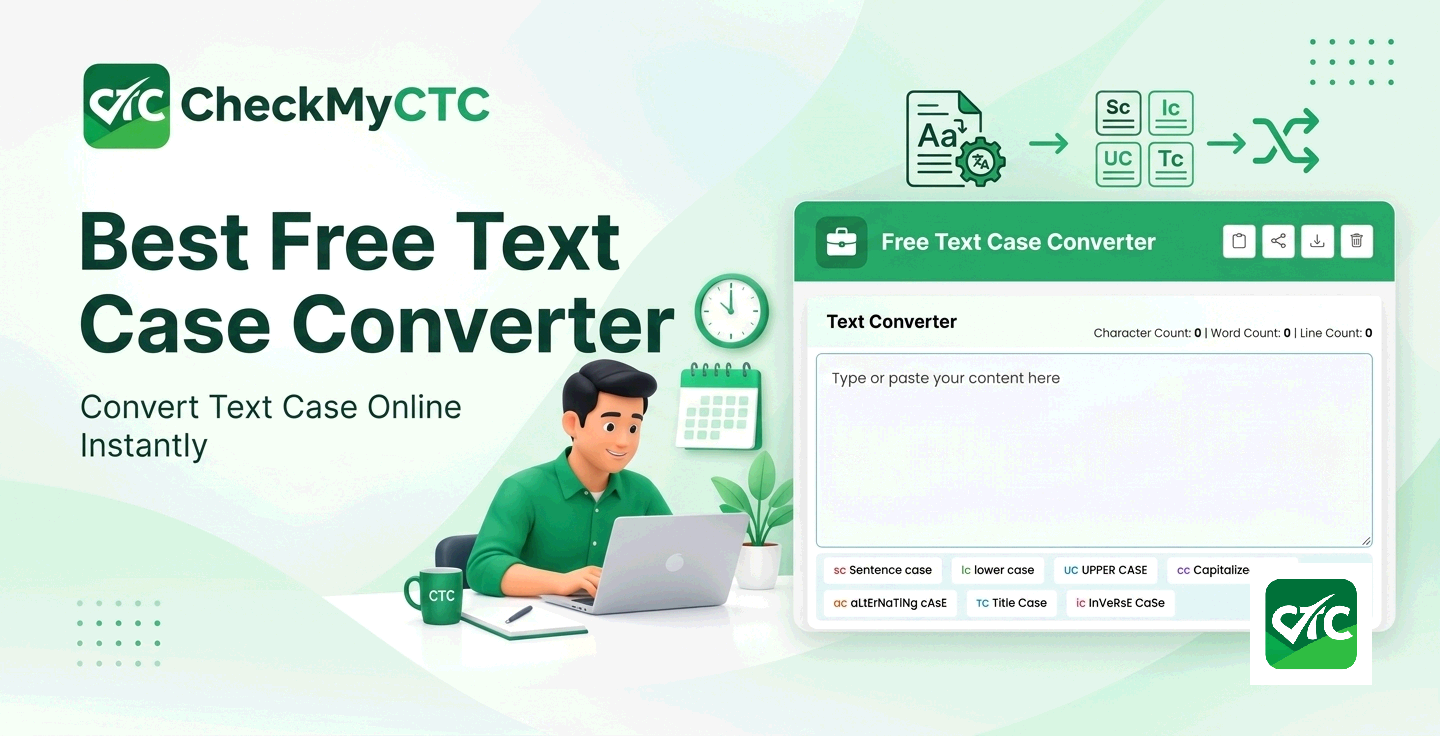
Best Free Text Case Converter – Convert Text Case Online Instantly
Formatting errors in text might seem minor, but in professional communication, they stand out immediately. Whether you have accidentally left CAPS LOCK on while drafting an important email, received a spreadsheet with inconsistent employee names in ALL CAPS, or need to format section titles for a resume, retyping everything from scratch is tedious and time-consuming.
Manual retyping also introduces preventable typos. An online Text Case Converter eliminates this friction by instantly transforming raw text into the exact casing style you need—whether that is clean Title Case, standard Sentence case, uniform UPPERCASE, or code-friendly formats like camelCase and kebab-case.
CheckMyCTC offers a simple, free browser-based tool designed to help working professionals, job seekers, content creators, and developers instantly adjust text formatting without installing additional software or memorizing complex keyboard shortcuts.
What Is the CheckMyCTC Text Case Converter?
The CheckMyCTC Text Case Converter is an online utility that transforms unformatted or incorrectly capitalized text into standard capitalization formats with a single click. You simply paste your text into the converter, select your desired casing option, and instantly copy the formatted result.
In workplace environments, text formatting comes up constantly. HR professionals handling employee records, candidates polishing CVs, accountants structuring payroll lists, and marketers drafting campaign headlines all rely on proper casing. The tool acts as an immediate formatting assistant, keeping your document styling consistent across every application.
What Problem Does an Online Text Case Converter Solve?
Working with text across different platforms—such as copying data from PDF files, web browsers, databases, or legacy software—frequently results in inconsistent capitalization. Resolving these issues manually causes several common headaches:
- Wasted Time on Manual Retyping: Fixing a single multi-page document or a large table of names manually can take hours.
- Accidental Caps Lock Errors: Typing a paragraph with Caps Lock turned on forces users to delete and rewrite their work.
- Inconsistent Resume and Document Styling: Blending uppercase, title case, and lowercase in professional headings creates a messy impression on hiring managers or clients.
- Data Normalization Issues: Importing customer names, job titles, or salary records into spreadsheets often results in entries like "JOHN SMITH", "john smith", and "John smith" within the same column.
- Development and Naming Friction: Programmers and web editors frequently need to convert plain text phrases into URL slugs or coding variables (e.g.,
user_salary_breakdownoruserSalaryBreakdown).
Key Case Conversion Modes Explained
Different communication contexts require different styling rules. Here is a breakdown of the primary text modes supported by automated text converters:
1. Sentence Case
Capitalizes the first letter of every sentence and leaves the rest in lowercase, preserving standard grammatical structure. This is ideal for emails, documentation, reports, and standard body copy.
2. Lowercase
Converts every single character in the input text to lowercase letters. This is useful for normalizing email addresses, database entries, and technical identifiers.
3. UPPERCASE
Transforms every character into capital letters. UPPERCASE is commonly used for prominent legal warnings, acronyms, table headers, or emphasis in specific document layouts.
4. Title Case
Capitalizes the first letter of every main word. Title Case is standard for blog titles, formal report headings, book titles, and major presentation subheadings.
5. Capitalized Case (Start Case)
Capitalizes the very first letter of every word regardless of grammar rules. This is particularly useful for list items, full names, and addresses in databases.
6. camelCase and PascalCase
Removes spaces between words and capitalizes subsequent words. In camelCase, the first word begins with a lowercase letter (e.g., totalSalaryAmount), while in PascalCase, the first letter is capitalized (e.g., TotalSalaryAmount). Both are essential for software development and script writing.
7. Kebab-Case (Slug Generator) and Snake_Case
Replaces spaces with hyphens (kebab-case) or underscores (snake_case) in lowercase text. Kebab-case is widely used for creating clean, SEO-friendly website URL slugs (e.g., [checkmyctc.com/convertcase](https://checkmyctc.com/convertcase)), while snake_case is standard in database column naming.
How to Use the CheckMyCTC Text Case Converter
Using the tool requires no account creation, browser extensions, or registration. The workflow is straightforward:
- Paste Your Text: Copy the text you wish to modify and paste it into the primary text box on the Text Case Converter page.
- Choose Your Target Case: Click the button corresponding to your desired output (e.g., Title Case, UPPERCASE, Sentence Case, or Slug).
- Review the Result: The tool instantly converts the text inside the box.
- Copy to Clipboard: Click the copy button or select the text to paste it directly into your email, document, spreadsheet, or code editor.
Practical Workplace and Career Use Cases
Capitalization standards vary depending on what you are writing. Here are practical scenarios where an online text case converter saves time:
1. Cleaning Up Resumes and Cover Letters
A polished resume requires consistent section headings. If some headings are written in ALL CAPS ("WORK EXPERIENCE") while others are in Title Case ("Education And Qualifications"), the document looks disjointed. Converting all headings to a uniform Title Case creates a professional layout.
2. Normalizing HR and Payroll Records
HR administrators regularly import employee rosters from various software tools. Names entered in all-lowercase ("rajesh kumar") or all-uppercase ("SARAH JENKINS") can be converted to Capitalized Case ("Rajesh Kumar", "Sarah Jenkins") before generating formal offer letters, salary slips, or CTC statements.
3. Structuring Email Campaigns and Article Headlines
Marketers and content editors frequently need to switch draft headlines from sentence case to title case to match editorial style guides. Automating this step prevents missed words and preserves clean formatting.
4. Web Publishing and SEO Optimization
Content managers and SEO specialists must convert long article titles into clean URL slugs. Replacing spaces with hyphens and stripping out uppercase letters manually is tedious, but a slug converter completes the task in one second.
Key Benefits of an Online Converter
- Instant Processing: Text is converted immediately as soon as you select a mode.
- Zero Installation: Works directly inside any modern web browser on desktop or mobile.
- Privacy-Focused: Text processing takes place entirely within your local browser session, ensuring sensitive data like salary figures or draft emails are not stored on external servers.
- Error Reduction: Eliminates human oversight when applying capital letters across large volumes of text.
Online Text Case Converter vs. Manual Formatting Methods
While word processors like Microsoft Word or Google Docs offer basic case modification shortcuts, an online tool provides distinct advantages depending on your workflow:
| Feature / Aspect | CheckMyCTC Text Case Converter | Manual Retyping | Word Processor Shortcuts |
|---|---|---|---|
| Speed | Instant (1 Click) | Slow (Minutes to Hours) | Fast (Requires hotkey knowledge) |
| Risk of Typos | None | High | None |
| Developer Formats (camelCase, Slugs) | Supported directly | Manual work needed | Not available by default |
| Cross-Platform Compatibility | Works anywhere with a web browser | Universal | Limited to specific software |
| Handling Large Datasets | Extremely easy | Impractical | Requires macros or formulas |
Common Formatting Mistakes to Avoid
While case converters automate the transformation process, keeping these guidelines in mind ensures your final document remains grammatically sound:
- Over-Capitalizing Sentences: Using UPPERCASE for entire paragraphs makes written communication appear aggressive ("shouting") and reduces readability. Reserve ALL CAPS for short headlines, acronyms, or specific warnings.
- Ignoring Industry-Specific Acronyms: Automated tools treat all words strictly according to algorithmic rules. If you convert text containing acronyms like "CTC", "PF", "GST", or "HR" into Title Case, the tool may output "Ctc", "Pf", "Gst", or "Hr". Always perform a quick visual review to restore proper acronym capitalization.
- Forgetting Title Case Style Rules: In formal English grammar (such as APA or Chicago style guides), short prepositions and conjunctions (e.g., "in", "on", "and", "of") remain lowercase in titles unless they start the heading. Standard start-case converters will capitalize every word, so minor manual tweaks may be needed for formal publications.
- Creating Unclean Slugs: When generating web slugs, ensure special characters, punctuation, and symbols (such as
&,%, or$) are removed so that the resulting URL remains valid.
Limitations and Important Considerations
Automated text converters process character casing based on programmatic logic rather than context awareness. Keep the following limitations in mind:
- Proper Nouns in Sentence Case: Converting an ALL-CAPS paragraph to sentence case will lower the case of names, cities, and brand names (e.g., "MUMBAI" becomes "mumbai"). You will need to manually capitalize proper nouns after conversion.
- Specialized Technical Terms: Programming languages and mathematical formulas often rely on specific mixed-case conventions (like
XMLHttpRequest). General-purpose case converters will split or flatten these strings unless carefully managed.
Why Use CheckMyCTC Tools?
CheckMyCTC offers practical, easy-to-use digital tools that help employees, job candidates, and business professionals manage day-to-day administrative, career, and workplace tasks efficiently. From calculating take-home pay breakdowns to formatting documentation, our utility tools are designed to streamline routine digital chores without complex steps or hidden paywalls.
Frequently Asked Questions (FAQs)
1. How does an online Text Case Converter work?
An online text case converter processes your input text through string-transformation algorithms. It checks character codes and instantly converts capital letters to lowercase equivalents (or vice versa), reorganizes spaces into hyphens or underscores, or capitalizes initial letters according to the selected mode.
2. Is my text saved or stored on any server when I use this tool?
No. The text conversion occurs locally within your web browser session. Your input data is not logged, uploaded, or saved on any remote database, making it safe for handling draft letters, resume text, and administrative records.
3. How do I convert text from ALL CAPS to sentence case?
Paste your ALL CAPS text into the text box of the CheckMyCTC Text Case Converter and click the Sentence case button. The tool will convert all letters to lowercase except for the first character following a period or line break.
4. What is the difference between Title Case and Capitalized Case?
Capitalized Case (or Start Case) capitalizes the first letter of every single word in the text. Standard Title Case follows grammatical styling where minor words like "a", "an", "the", and "of" may remain in lowercase depending on their position in the sentence.
5. Can I use this tool to create SEO-friendly URL slugs?
Yes. By selecting the Kebab-Case / Slug option, the tool converts spaces to hyphens and turns all characters into lowercase, creating a clean format suitable for website page addresses.
6. Why did my acronyms change to lowercase after using Sentence Case?
Algorithmic converters do not automatically distinguish between regular vocabulary words and acronyms like CTC, HR, or IT. When changing casing styles, acronyms are transformed along with other text, so you should quickly check and re-capitalize your acronyms after processing.
Simplify Your Text Formatting Today
Fixing improper capitalization manually is a poor use of valuable working time. Whether you are prepping a resume, fixing a database table, or polishing a report headline, CheckMyCTC’s converter gives you clean results in seconds.
Try the free CheckMyCTC Text Case Converter today to format your text instantly and keep your professional documents looking sharp.
Explore All CheckMyCTC Calculators & Tools
Explore our free salary, tax, HR and productivity tools to calculate salary changes, estimate employee benefits, manage employment dates and simplify everyday tasks.
Salary & CTC Calculators
- Salary Hike Calculator
- Overtime Pay Calculator
- Monthly Salary to Annual Package Calculator
- Annual Package to Monthly Salary Calculator
- Take-Home Salary Calculator
- CTC Breakup Generator
- Monthly Bonus Calculator
- Annual Bonus Calculator
- Job Offer Comparison Calculator
- Pro Rata Salary Calculator
Tax, PF & Employee Benefits
- HRA Tax Exemption Calculator
- EPF Provident Fund Calculator
- Gratuity Calculator
- LTA Calculator
- Professional Tax Calculator
- Income Tax Calculator
- National Pension System (NPS) Calculator
- ESI Calculator
- GST Calculator
Leave & Employment Calculators
- Work Experience Calculator
- Last Working Day Calculator
- Resignation Date Calculator
- Leave Amount & Salary Deduction Calculator
- Notice Period Calculator
- Earned Leave Encashment Calculator
- Sandwich Leave Calculator
- Maternity & Paternity Leave Calculator
Salary Documents & Generators
- Payslip Generator
- Salary Certificate Generator
- Experience & Relieving Letter Generator
- QR Code Generator
Phone Number & Productivity Tools
Leave a Comment
Comments
No comments yet. Be the first to comment!